Control High-Risk Work.
ToolboxFM helps teams organise, coordinate and communicate high-risk activities and the exclusion zones they require. When work carries increased risk, it needs to be properly planned, controlled and communicated.
Establish · Communicate · Book · Approve · Work · Capture · Close out
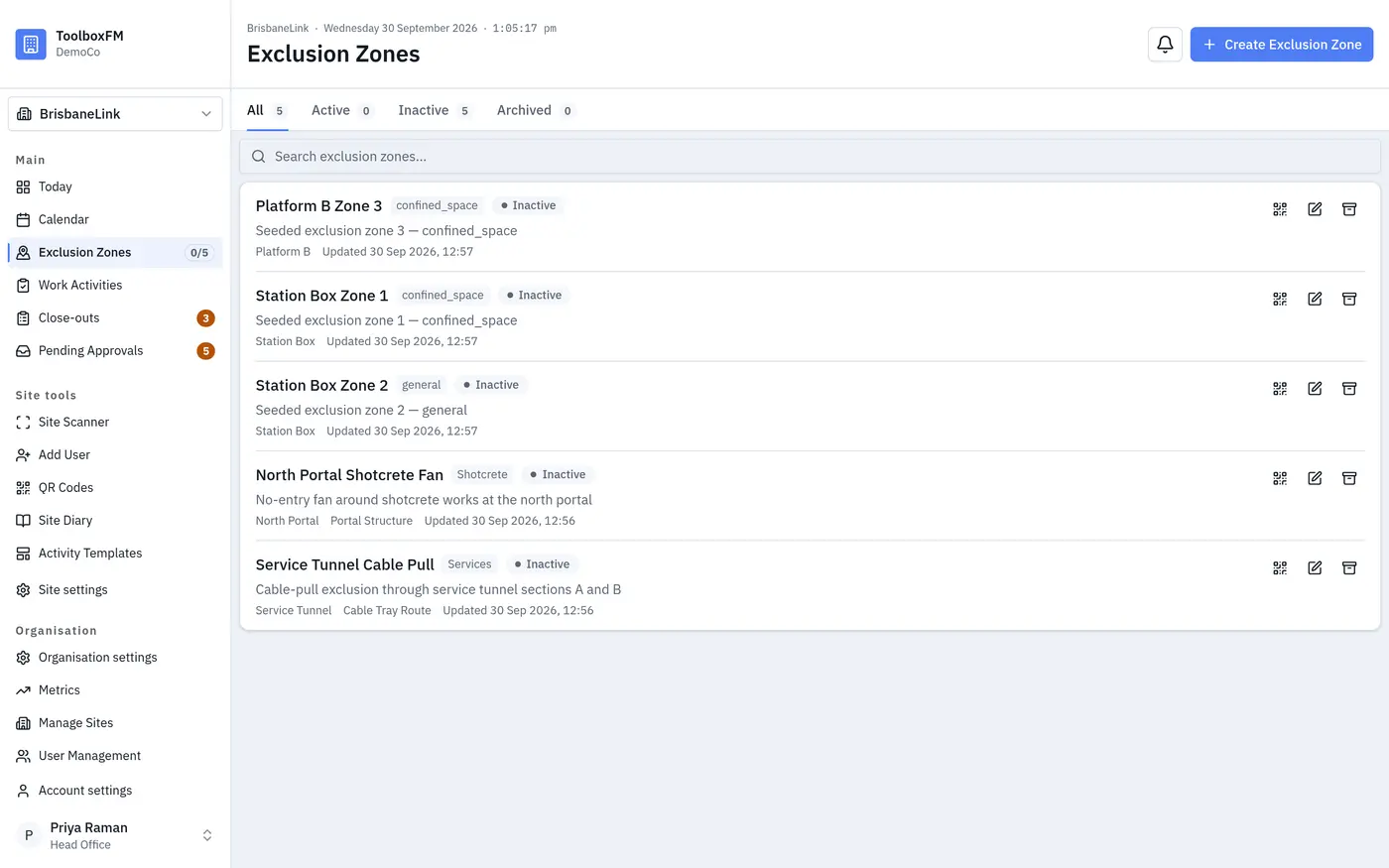
Establish the zone
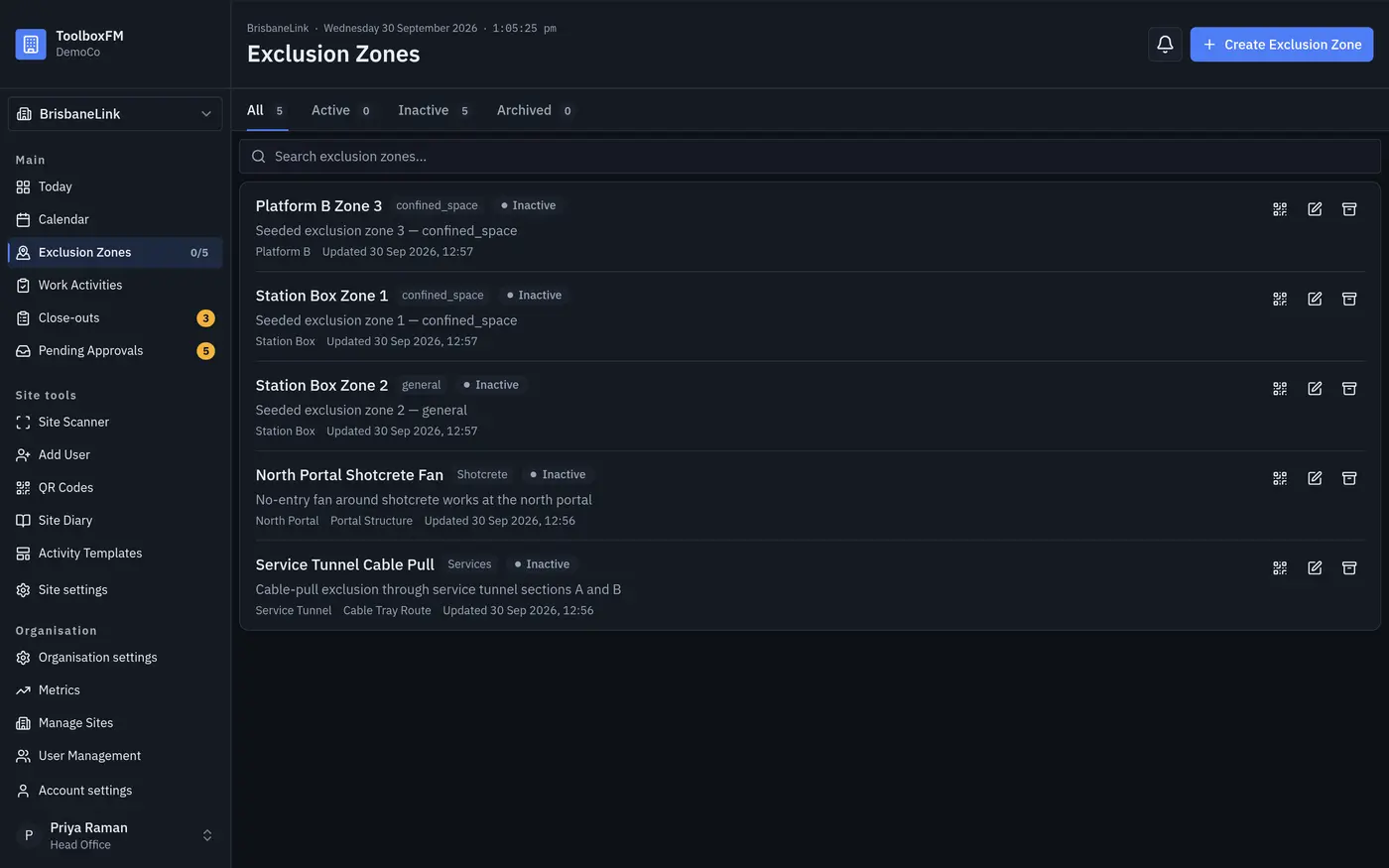
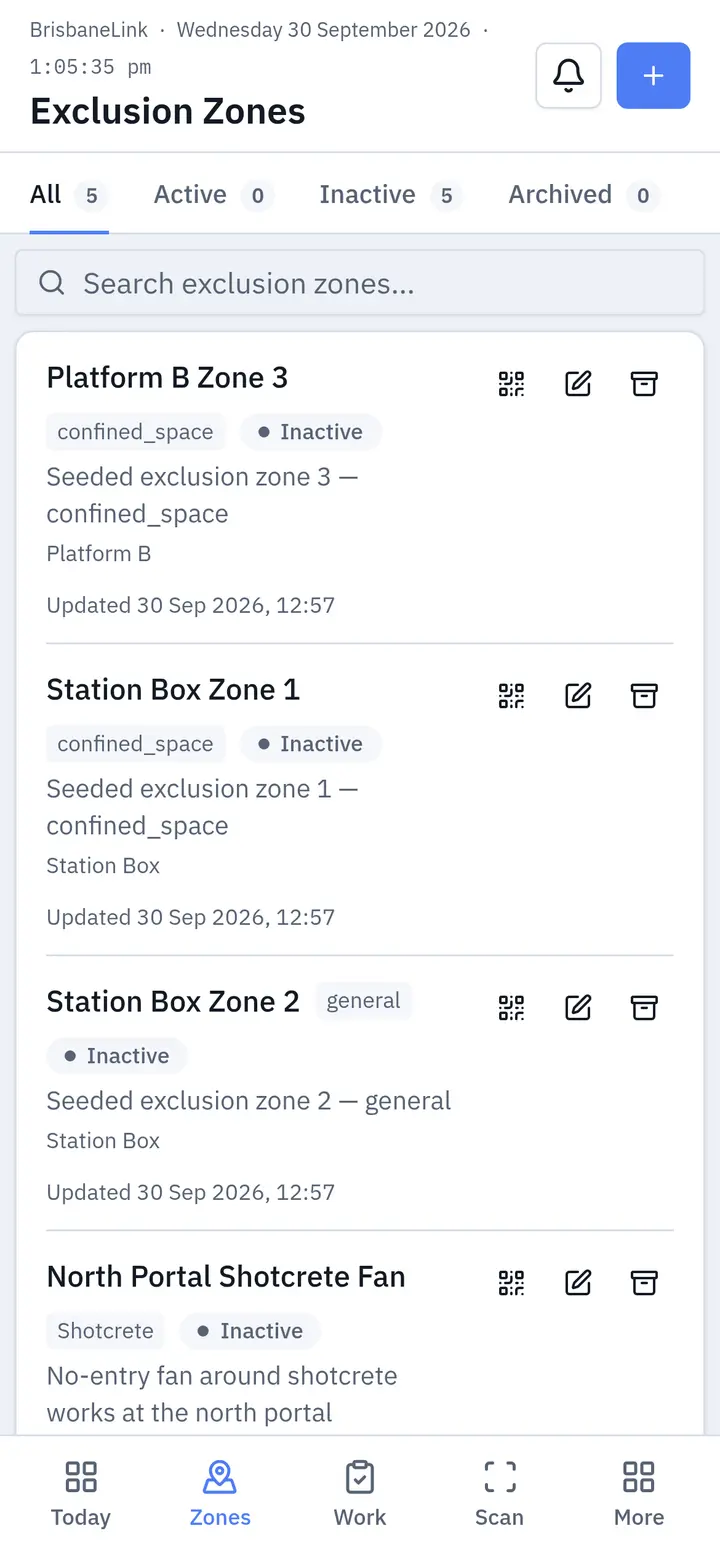
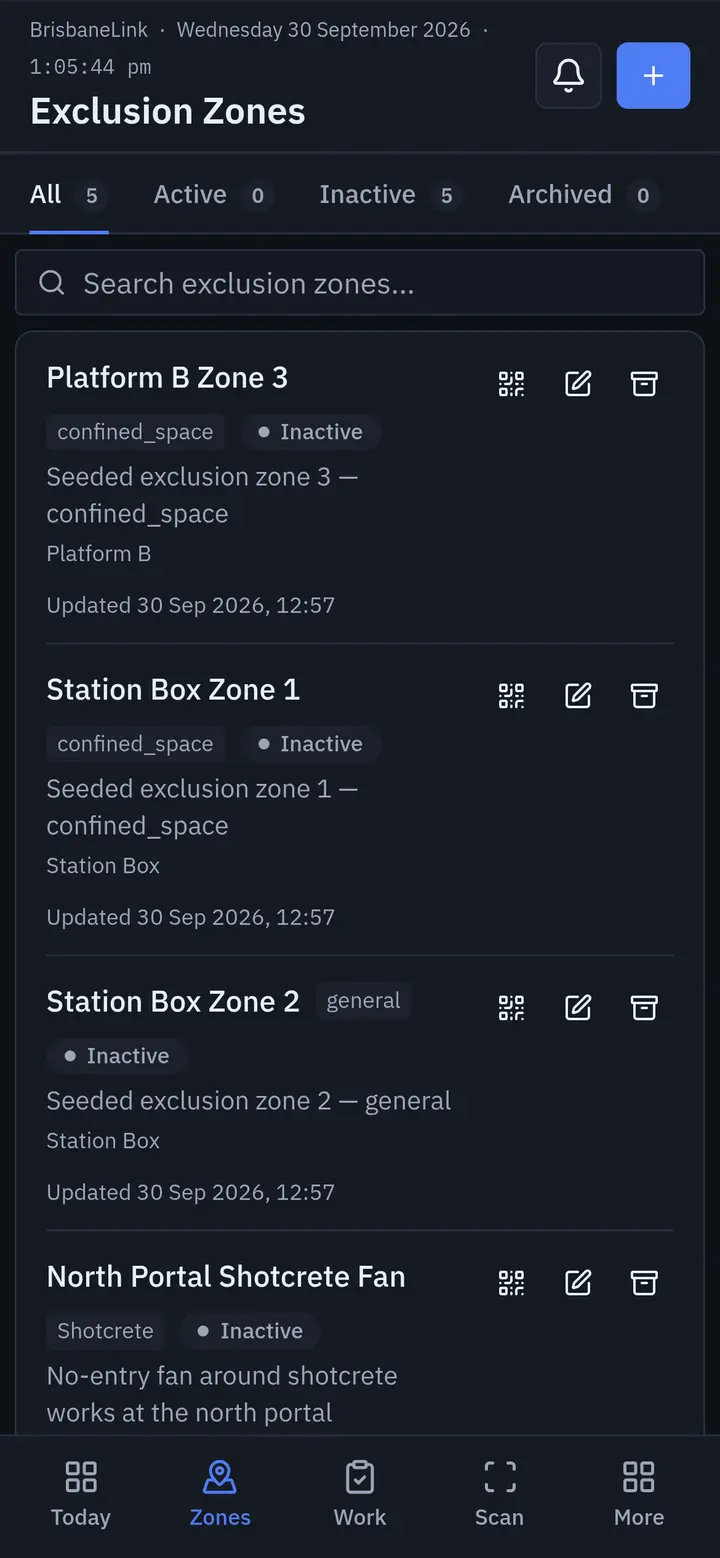
Project teams establish exclusion zones by defining their location and making them visible to everyone on the project.
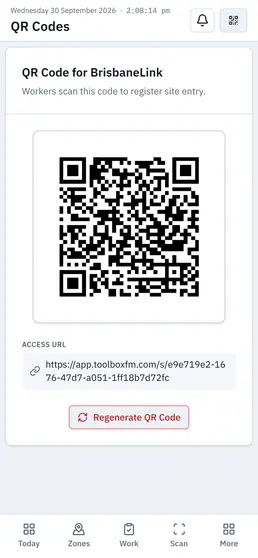
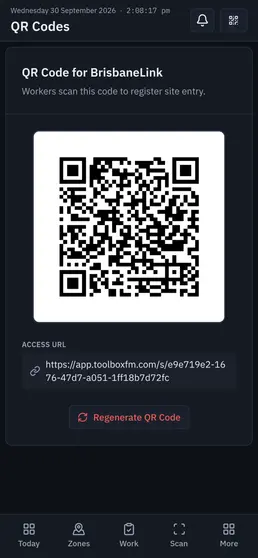
Each exclusion zone identifies the area where high-risk work may take place and can be issued with a printable QR code for display at the location.
The zone remains available for activities to be booked against it, while the subcontractor and work details are captured when an activity is submitted.
Communicate the work
Exclusion zones make high-risk work visible to everyone on the project.
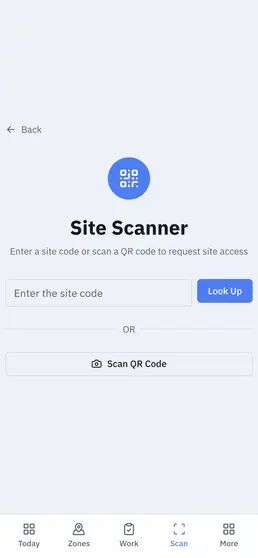
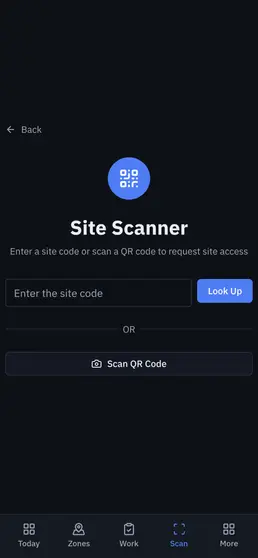
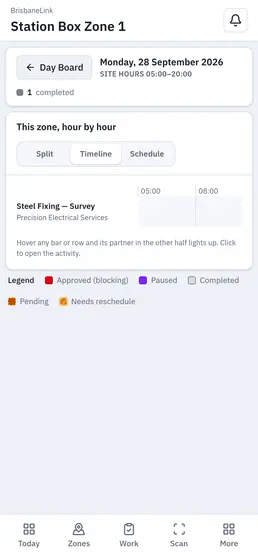
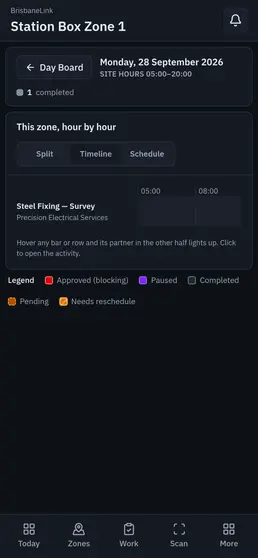
Anyone can scan a QR code to see what work is taking place, where it is happening and what controls are required.
No app. No login. No profile. Just scan and know.
Scan and know
A code at the barrier, a camera, and the zone as it stands right now.
Book the work
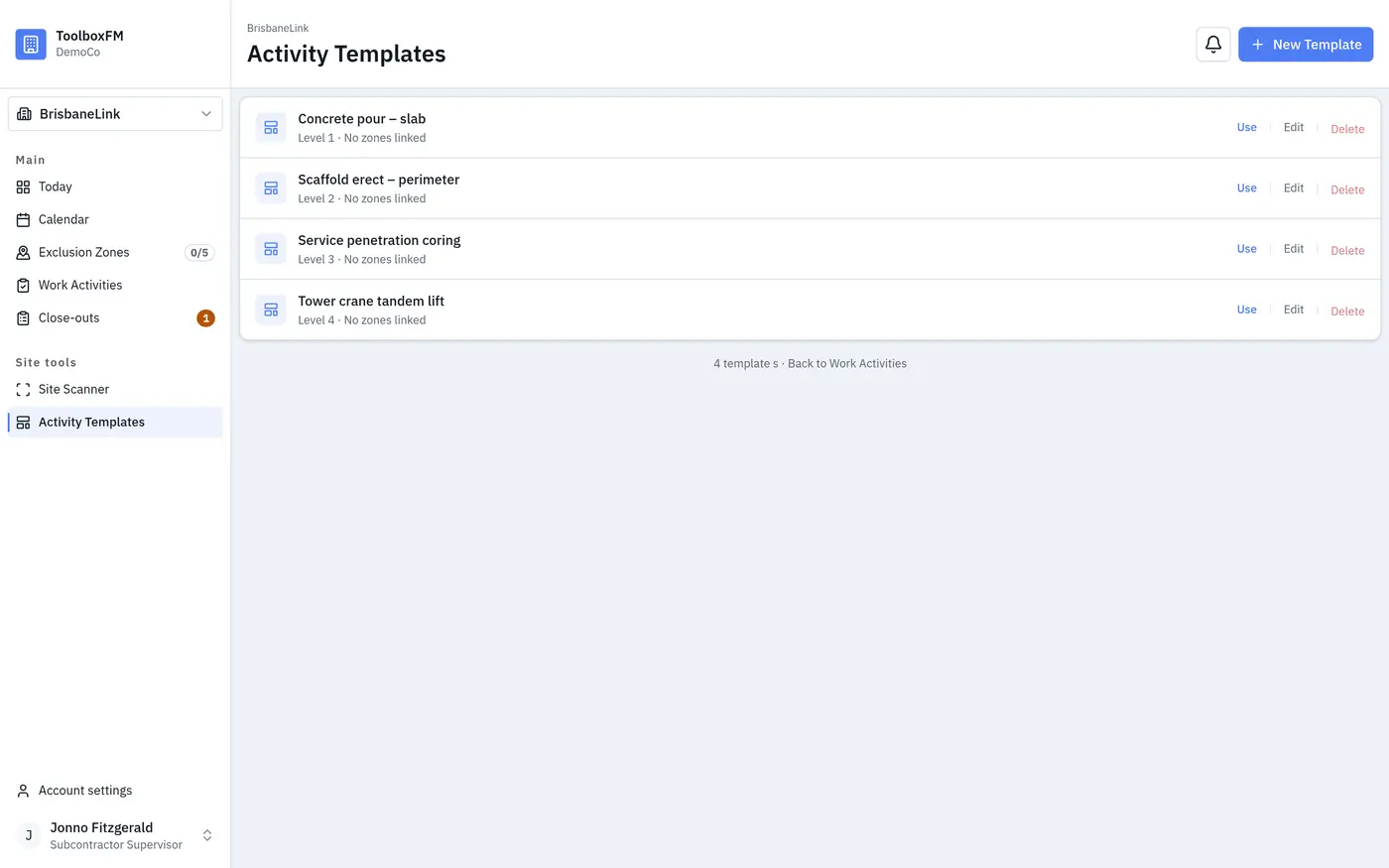
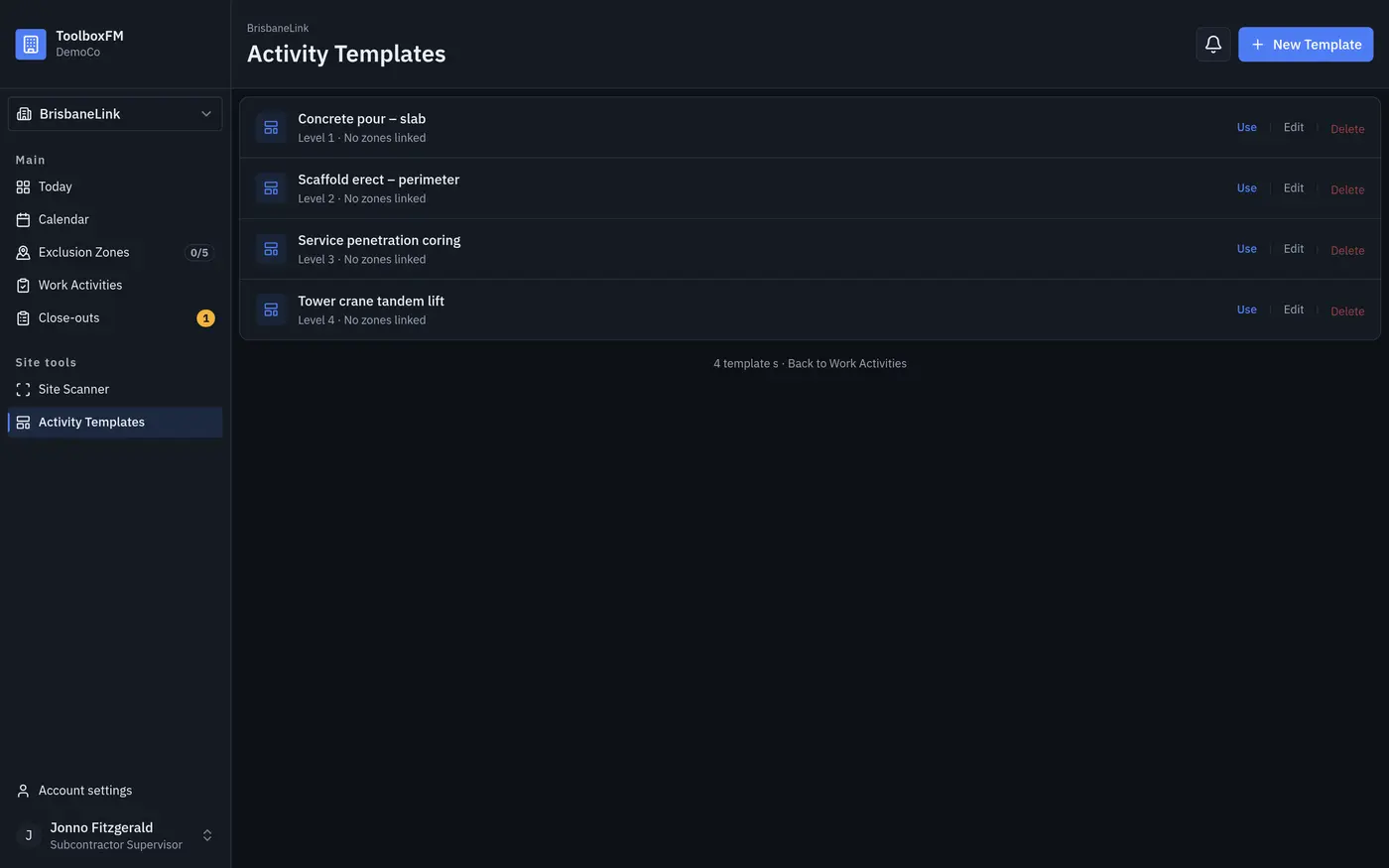
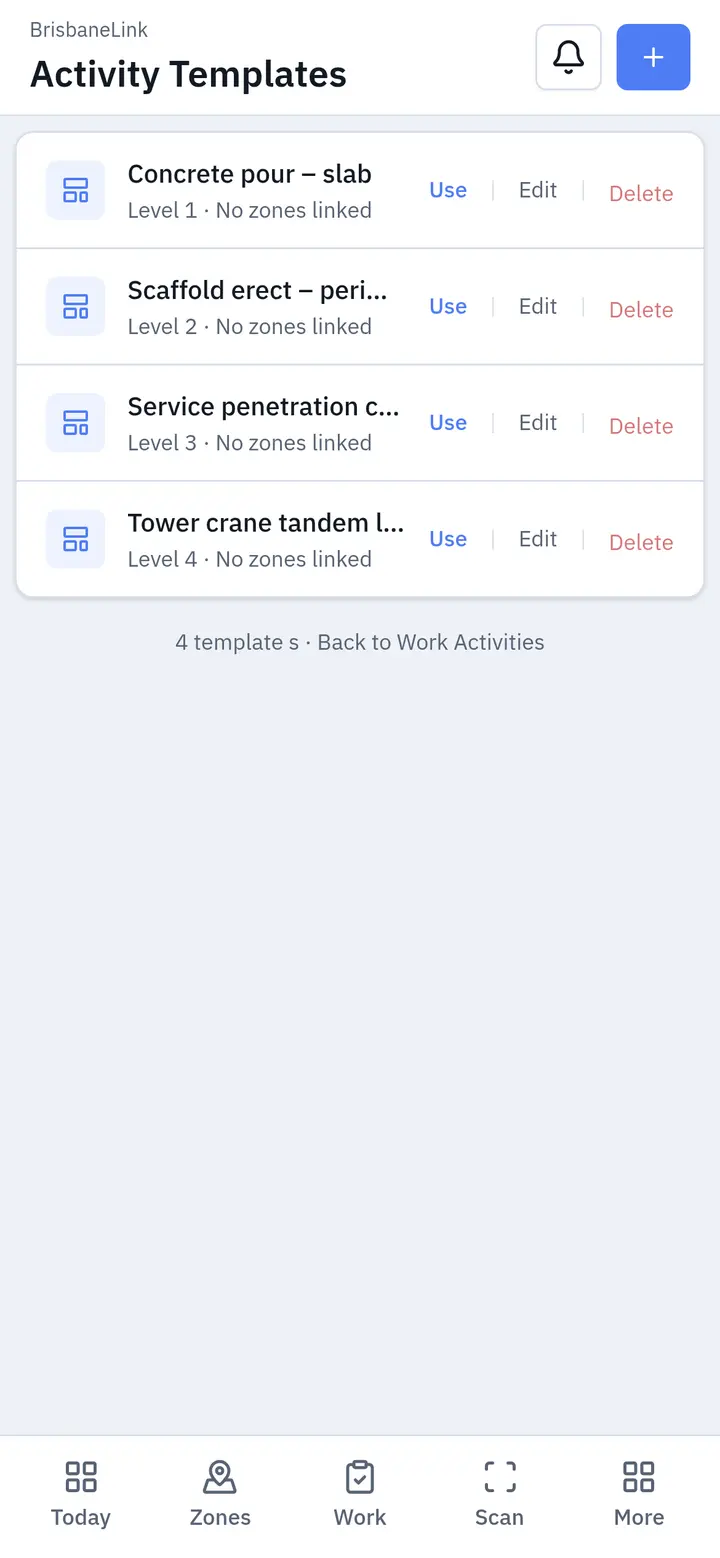
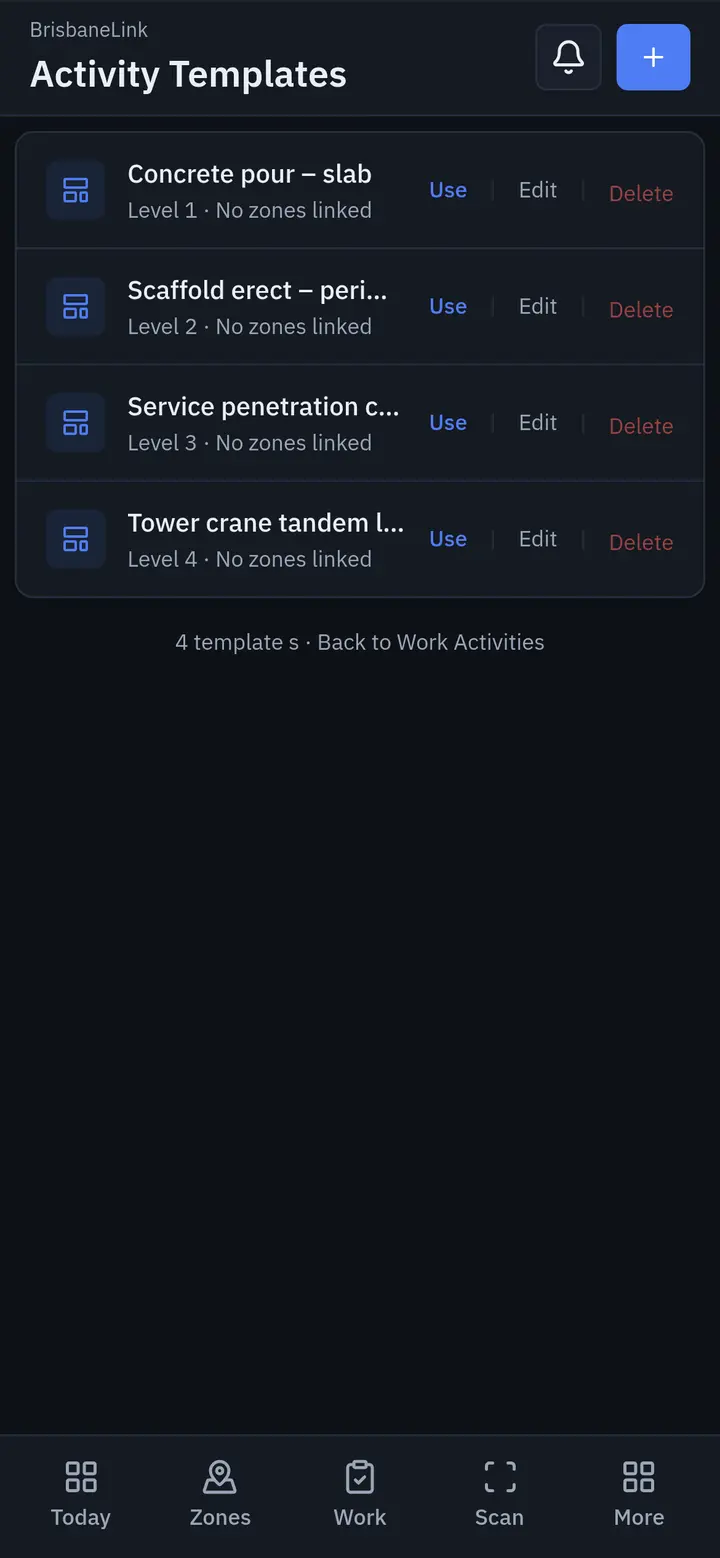
Subcontractors request to carry out work within a nominated exclusion zone.
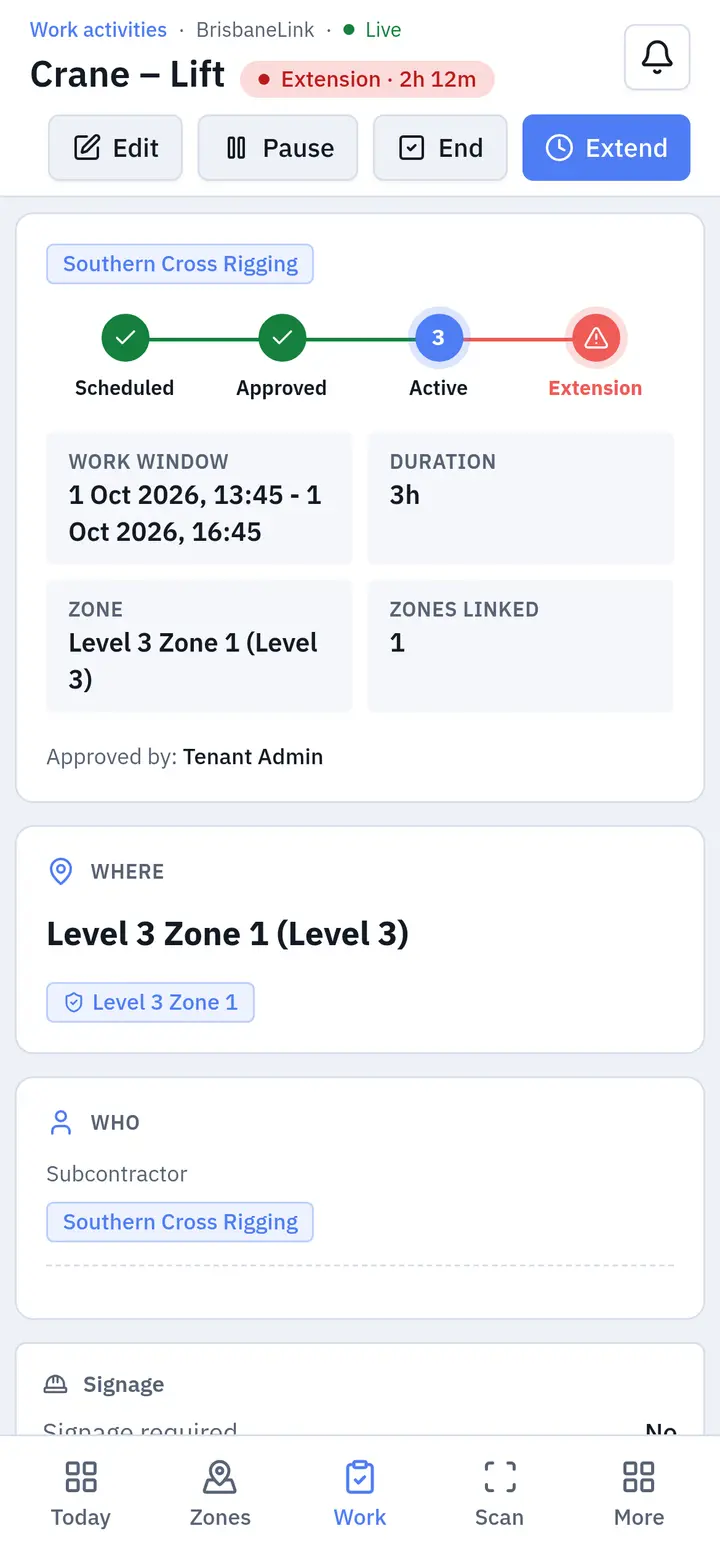
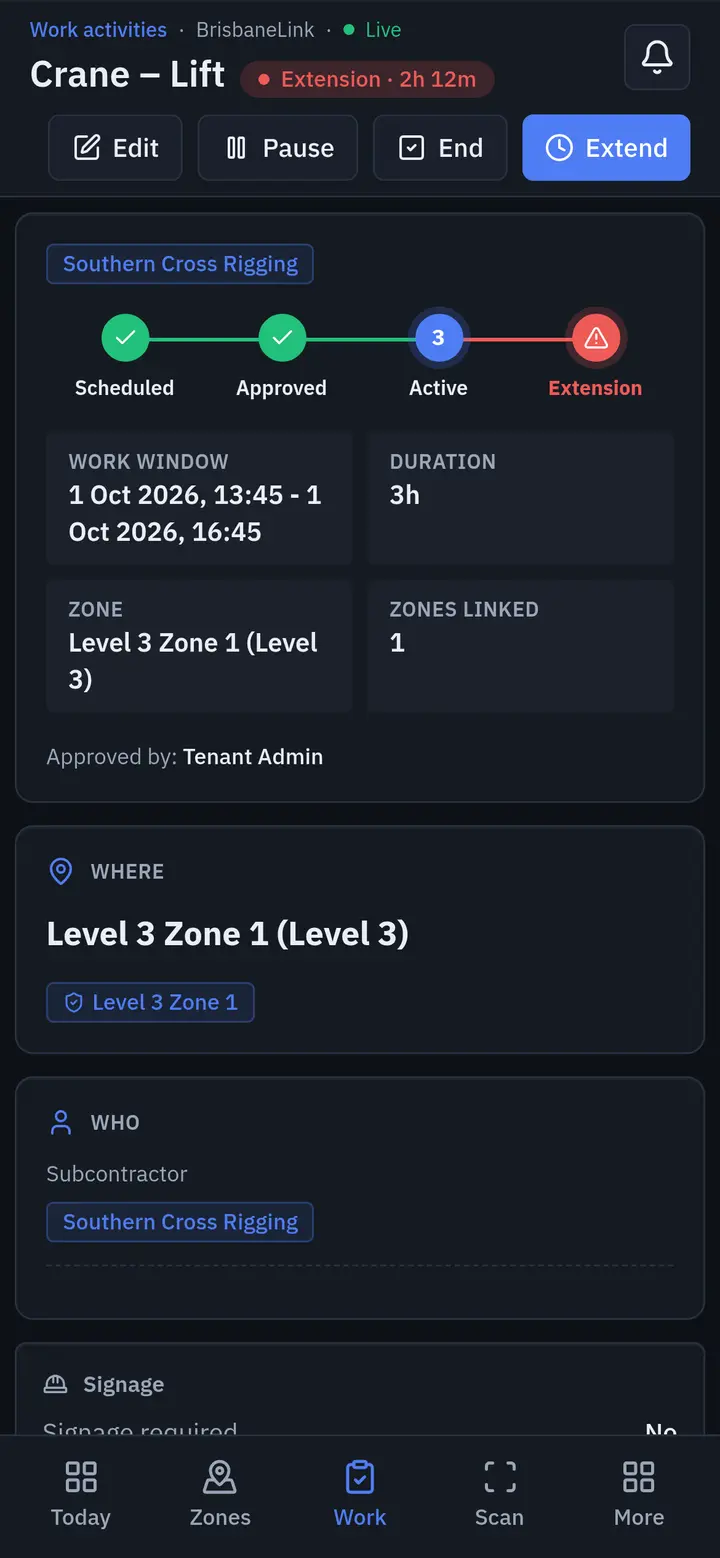
The activity is linked to the zone, with the subcontractor, work activity, plant and equipment, required controls, and spotter or supervisor details captured as part of the booking.
The request is then submitted to the project team for approval.
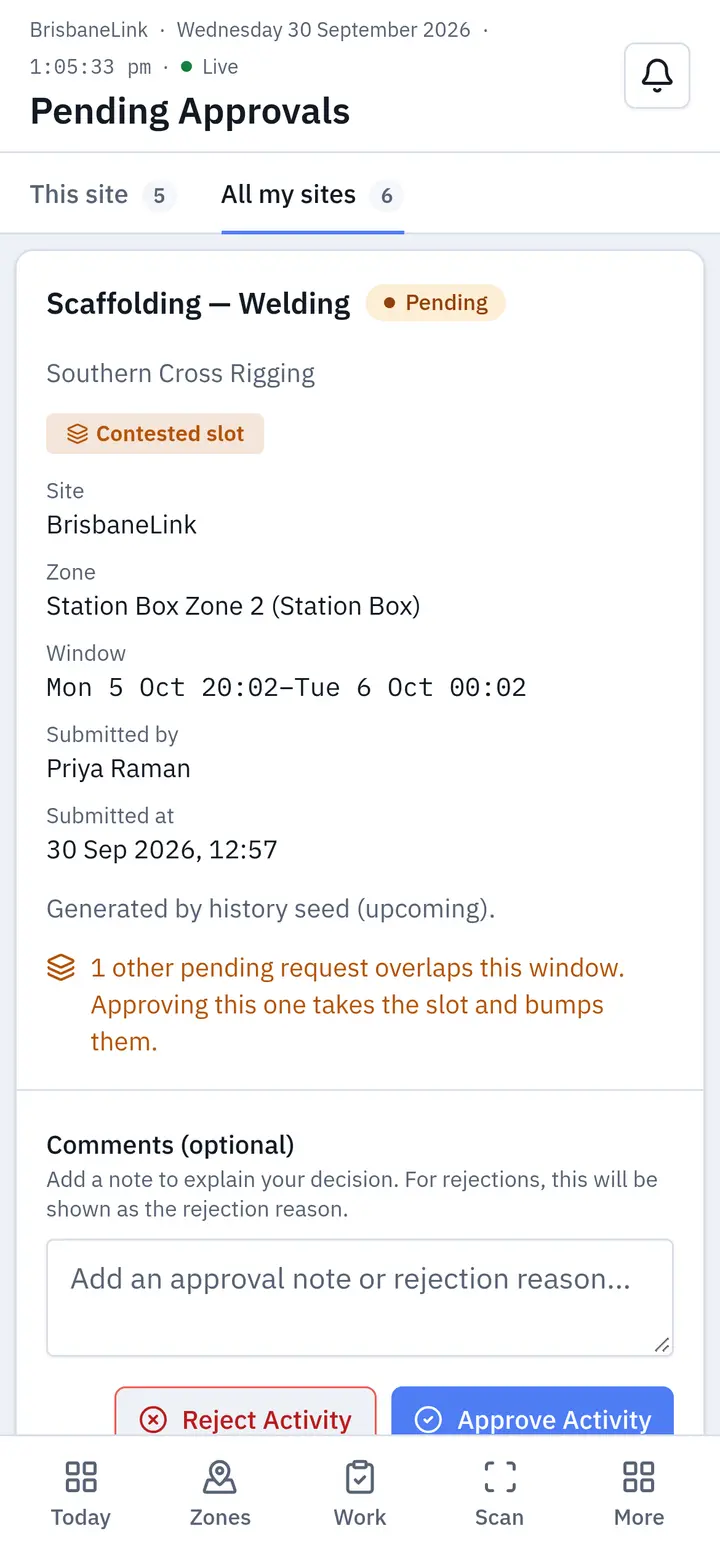
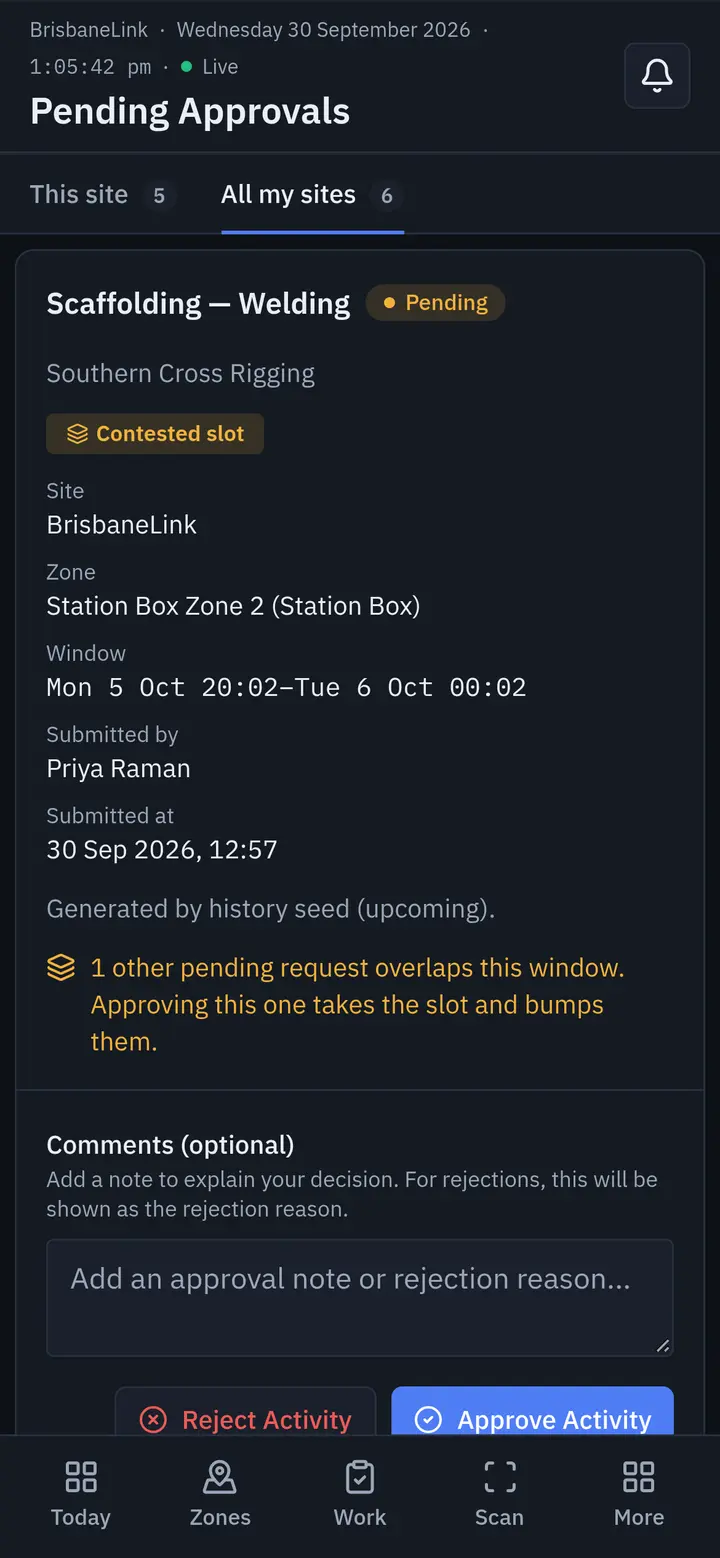
Two high-risk activities cannot occupy the same exclusion zone at the same time.
Approve the work
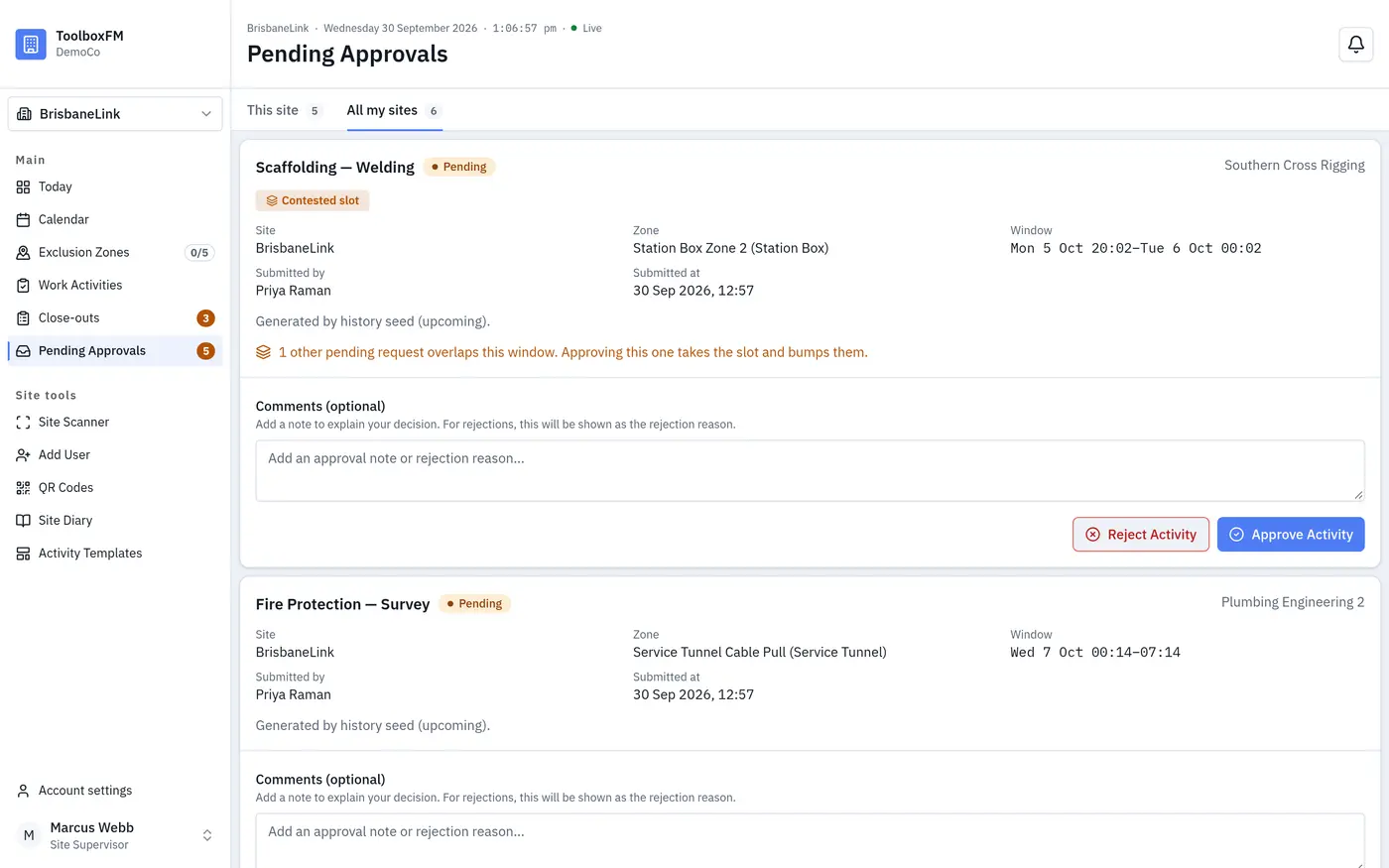
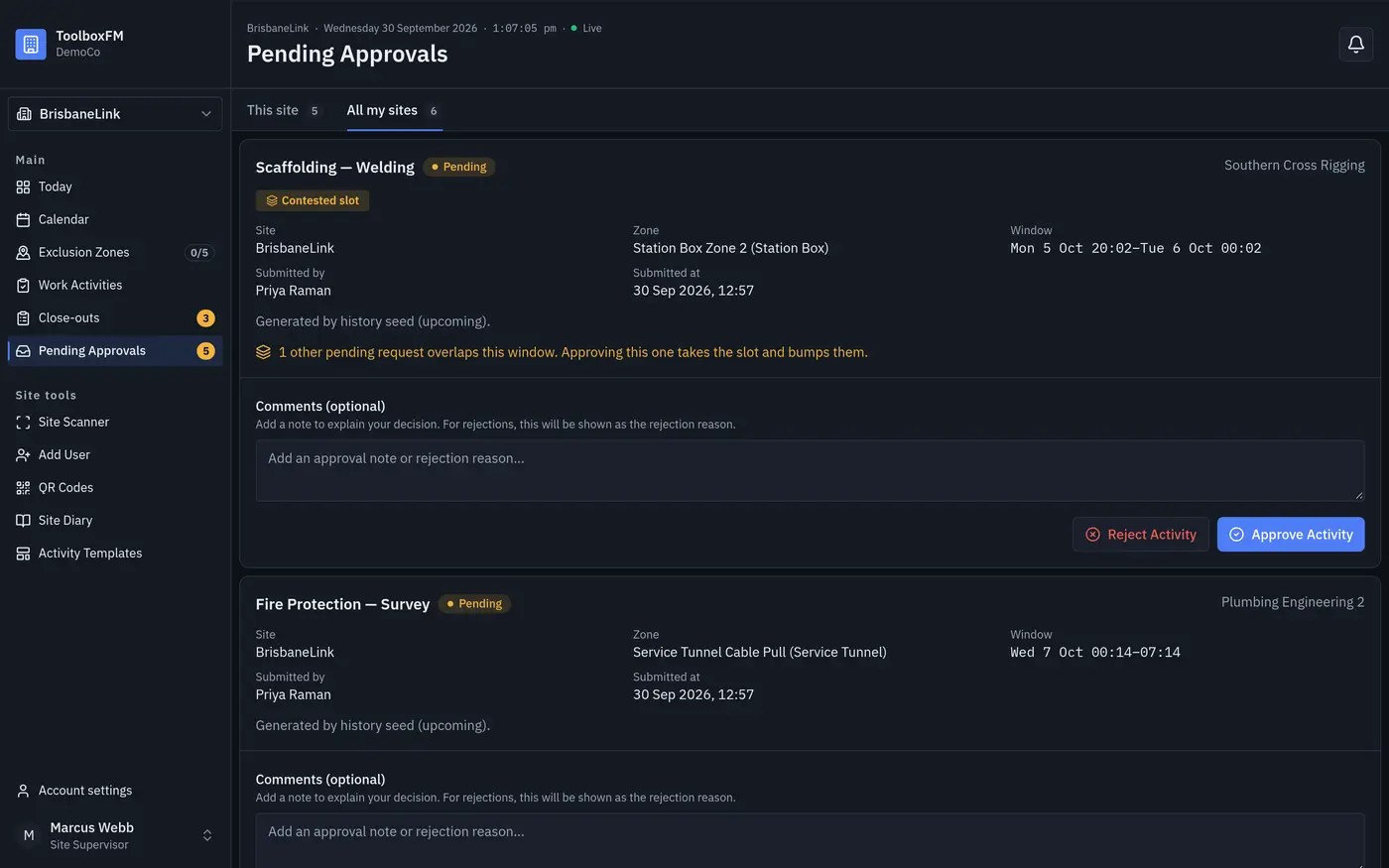
The project team reviews and approves the requested activity before work begins.
The approval process creates coordination, accountability and clear communication around high-risk work.
Once approved, activities appear on the Day Board.
Work in the zone
When work starts, the activity becomes Live.
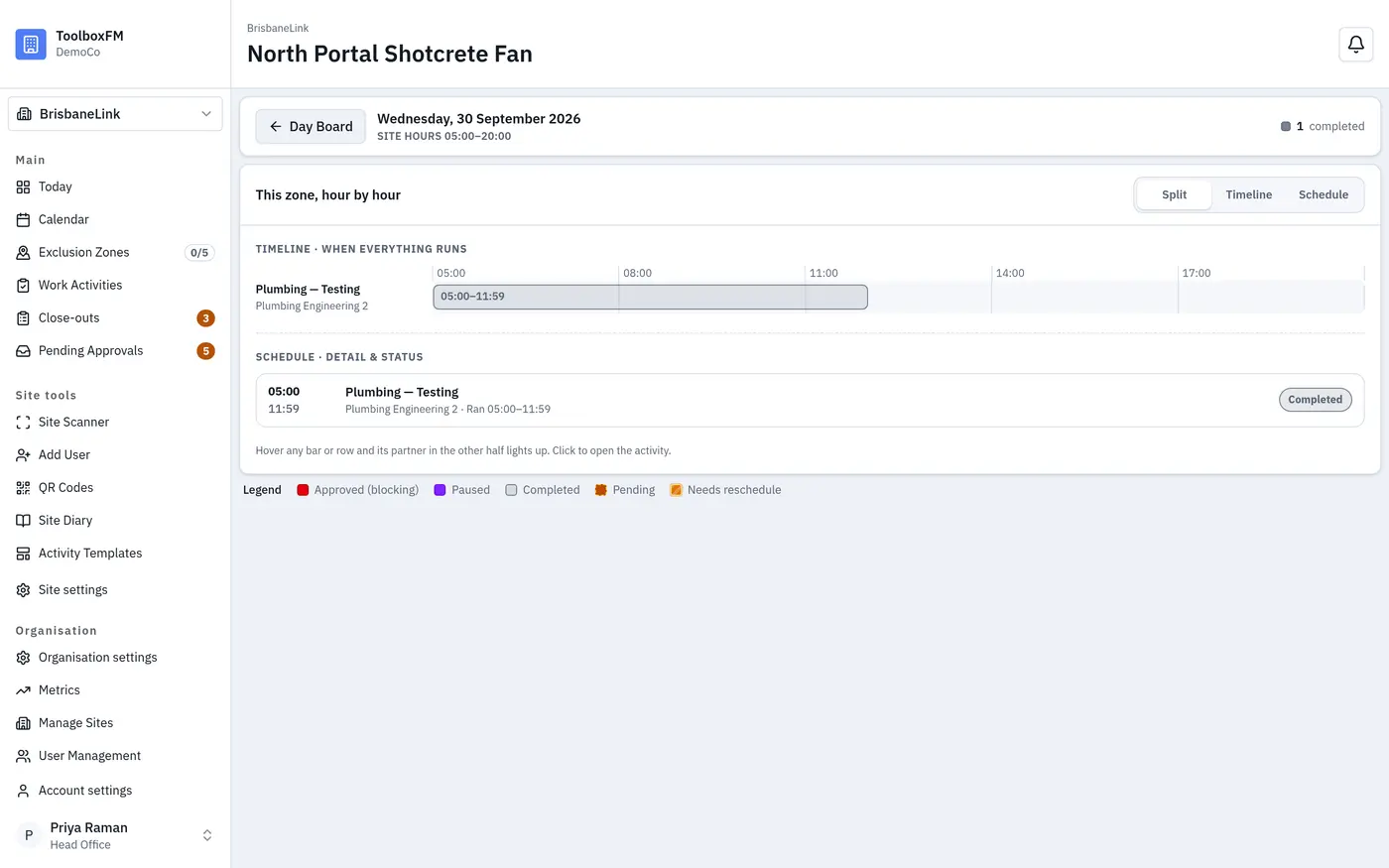
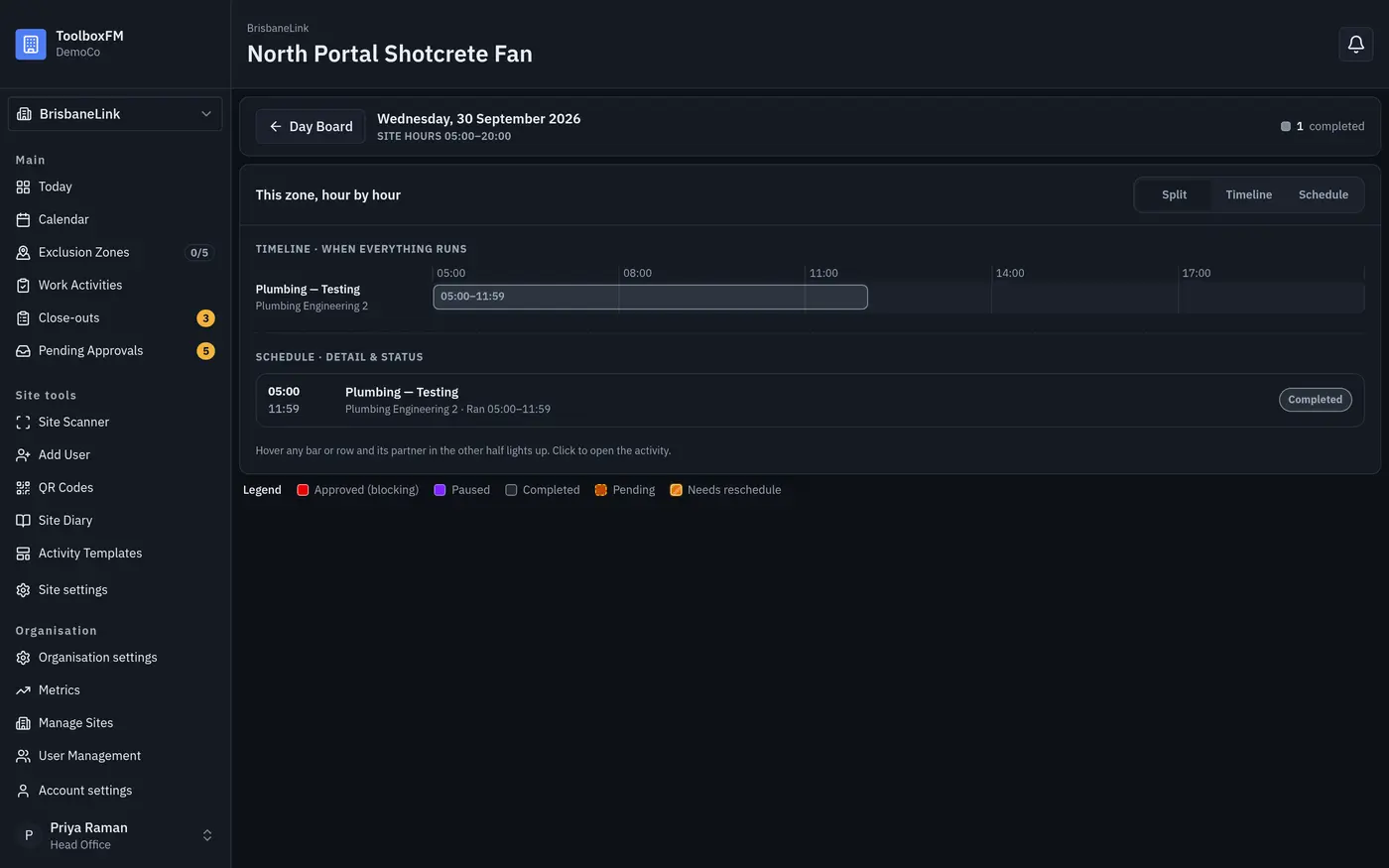
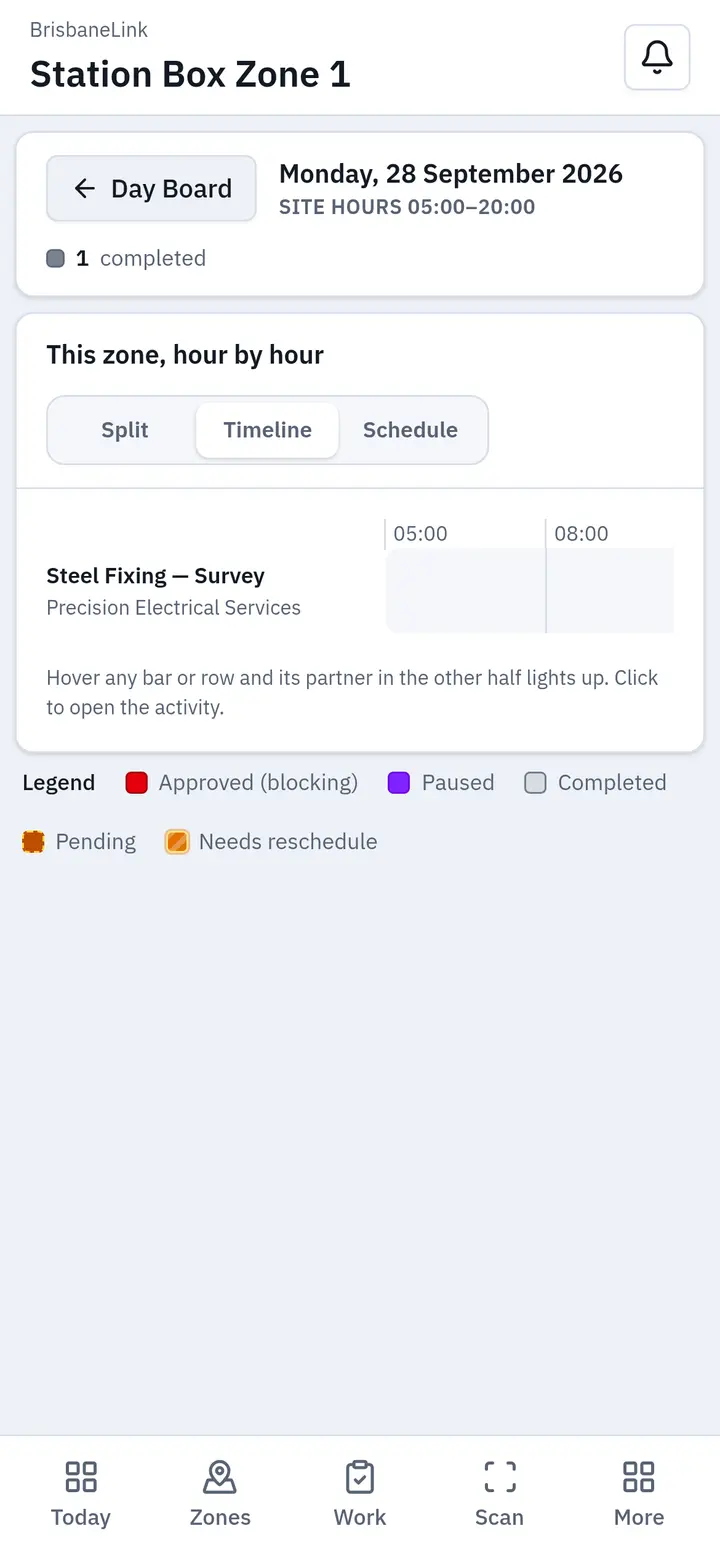
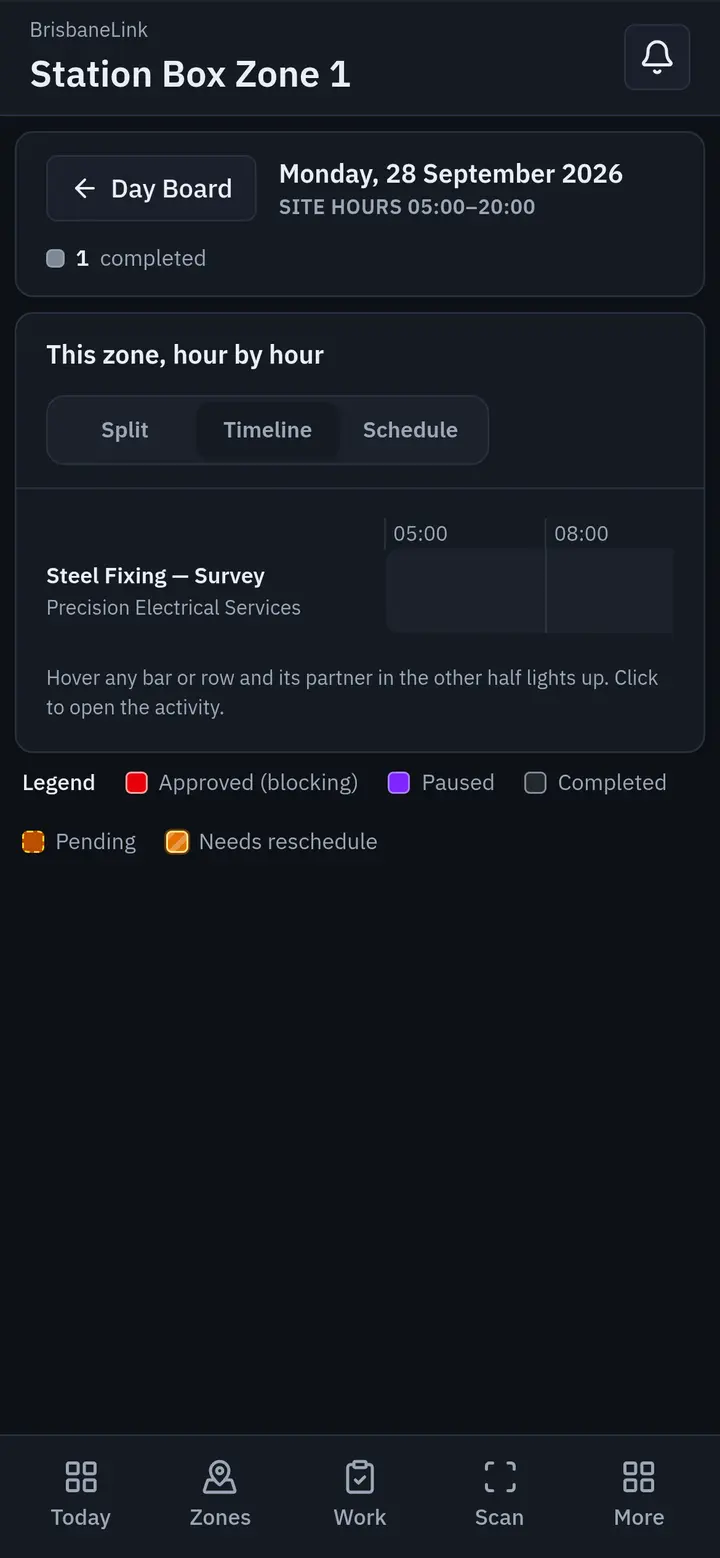
The active work remains visible to the project team, helping everyone understand what high-risk activities are taking place and where.
Capture what happens
Work doesn't always go to plan.
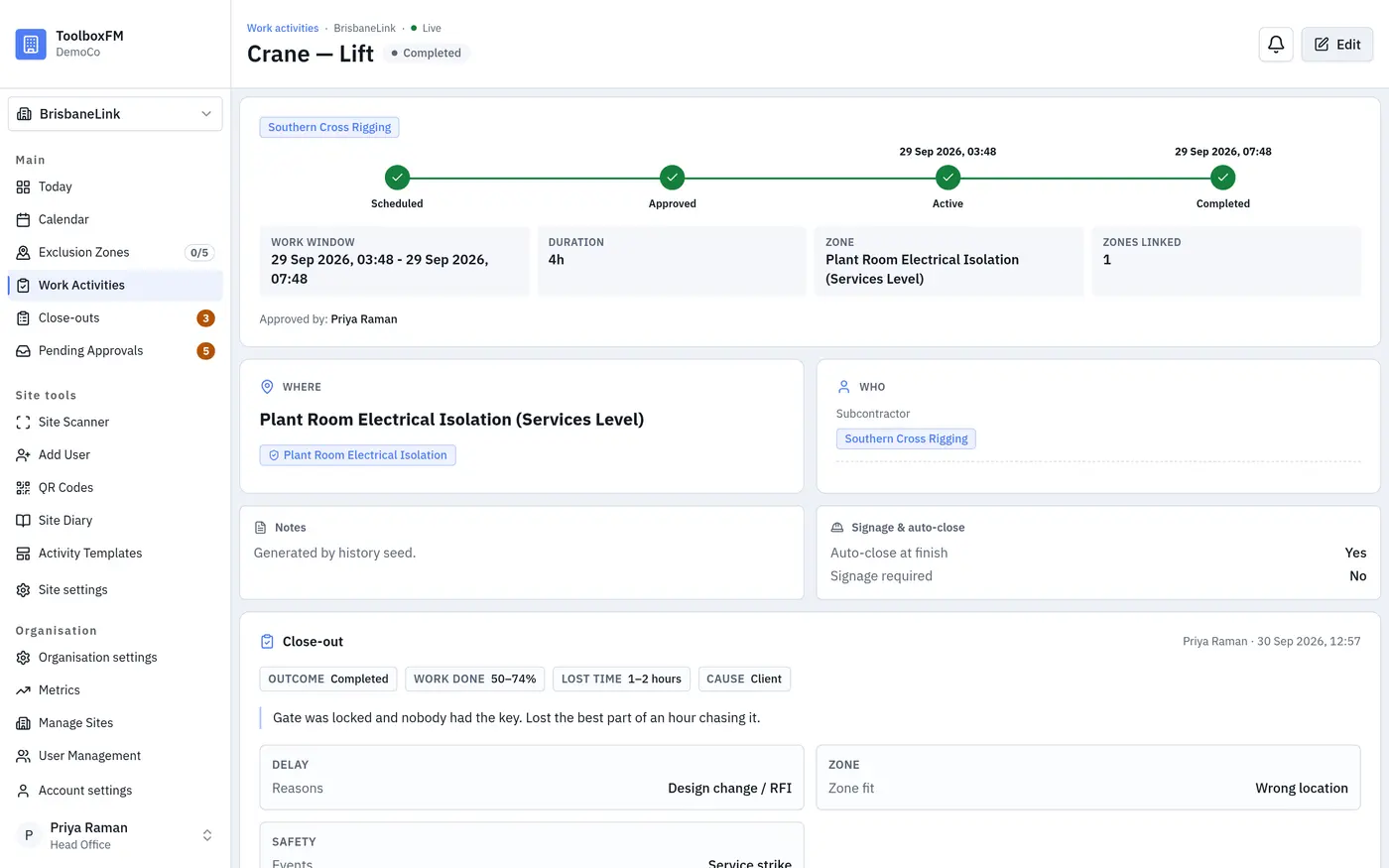
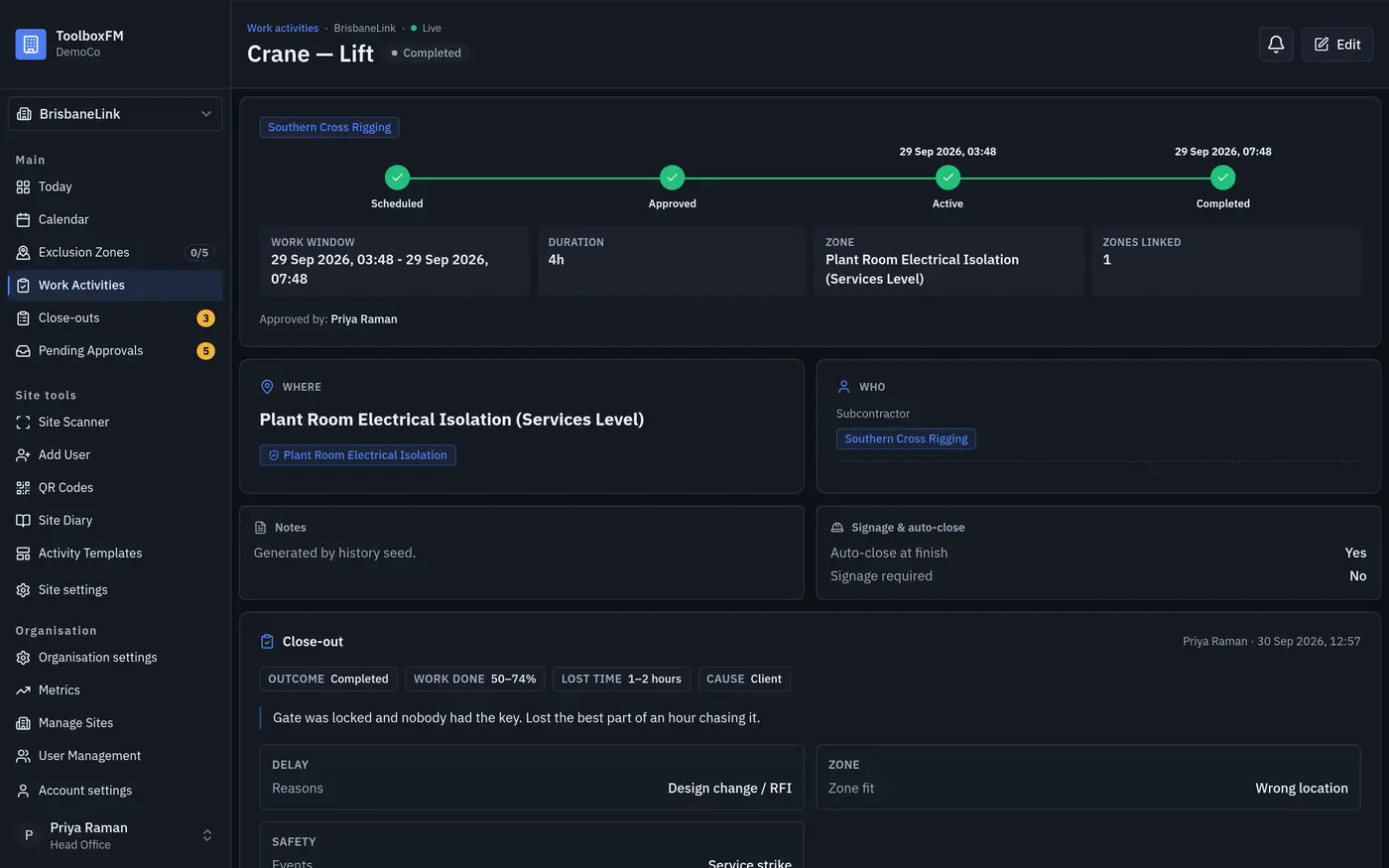
If an activity is paused, ToolboxFM records why it stopped, when it stopped and how long it was delayed.
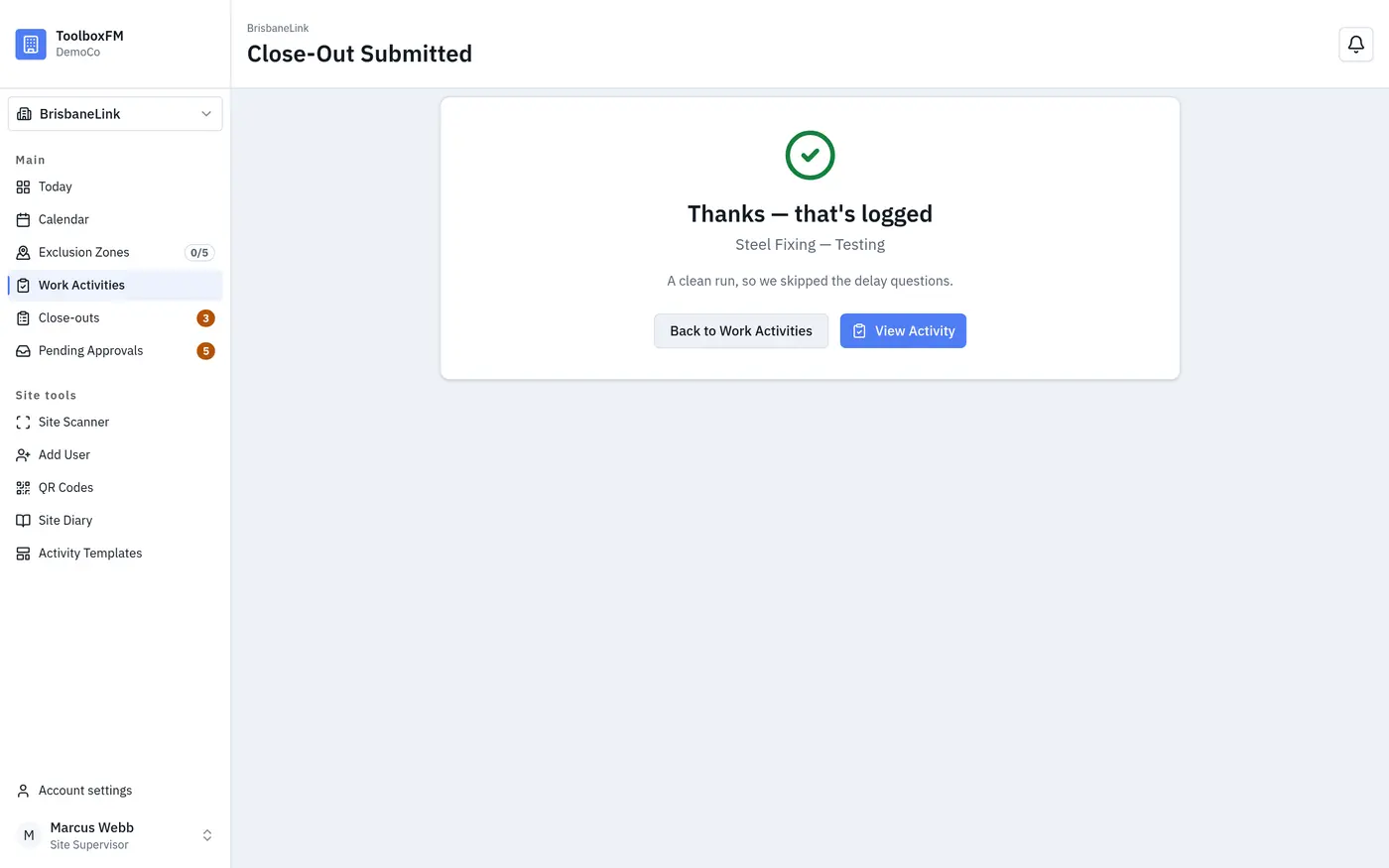
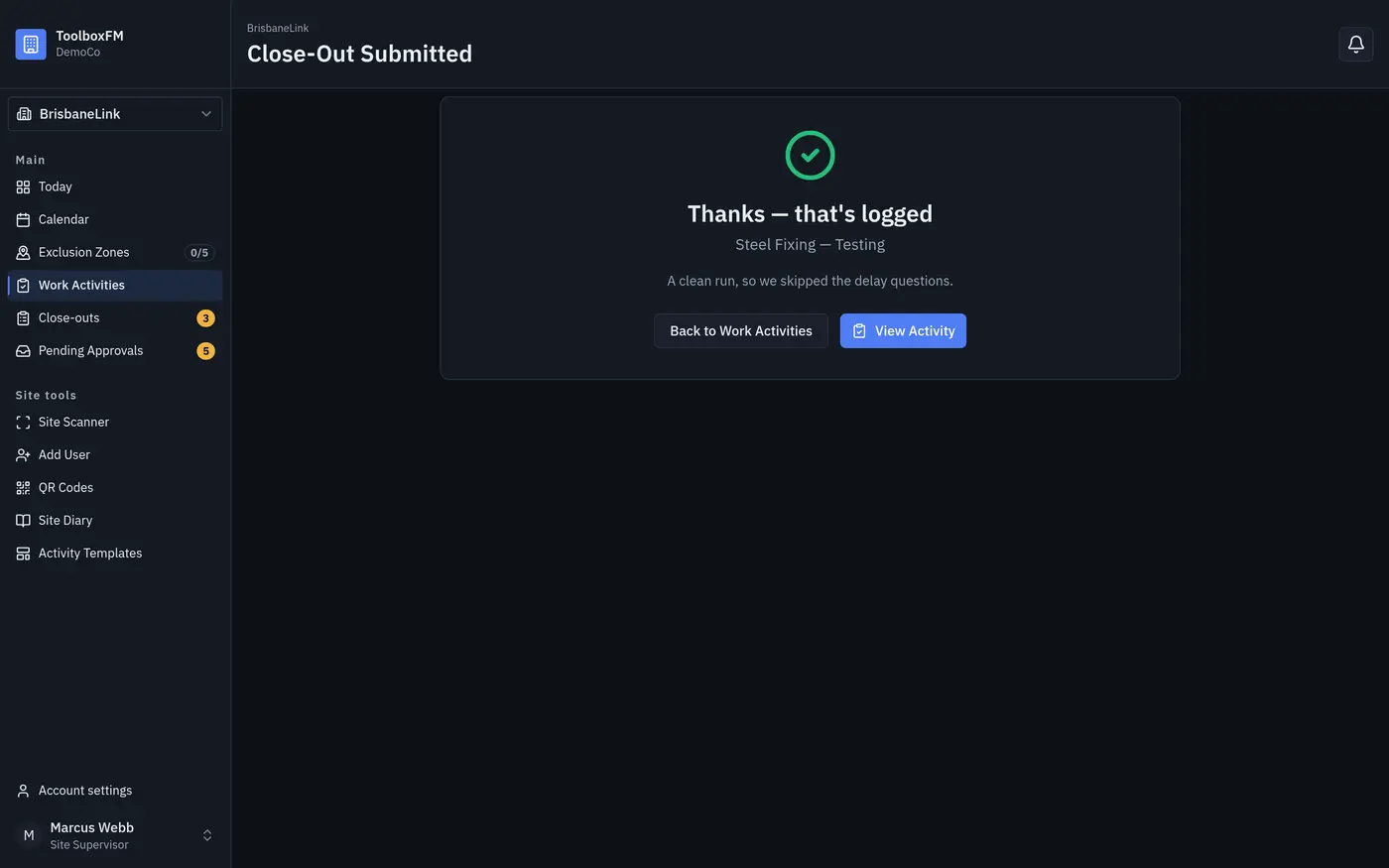
When the work is completed, a simple close-out captures what happened. The information is automatically recorded for the project diary and project records.
Less remembering. Less manual entry. Better information.
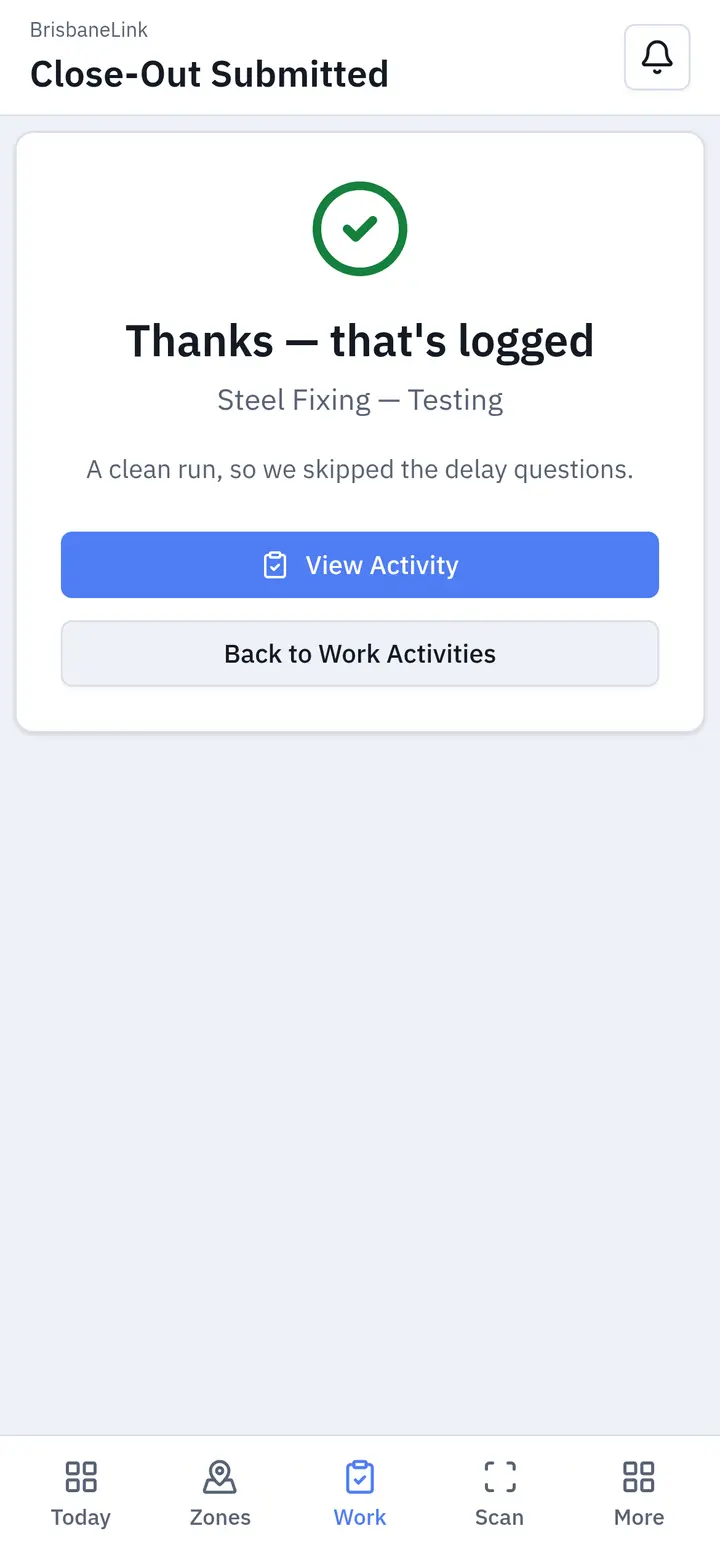
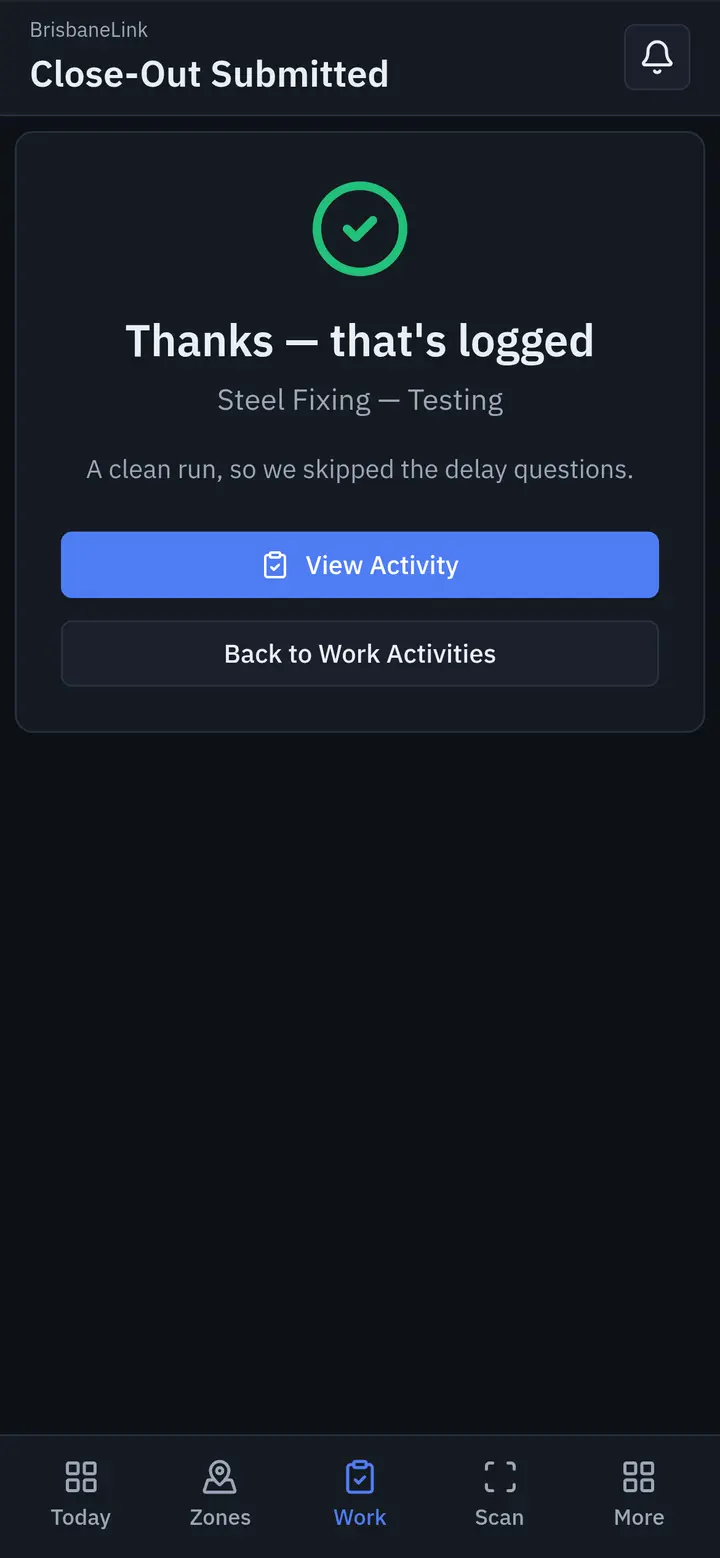
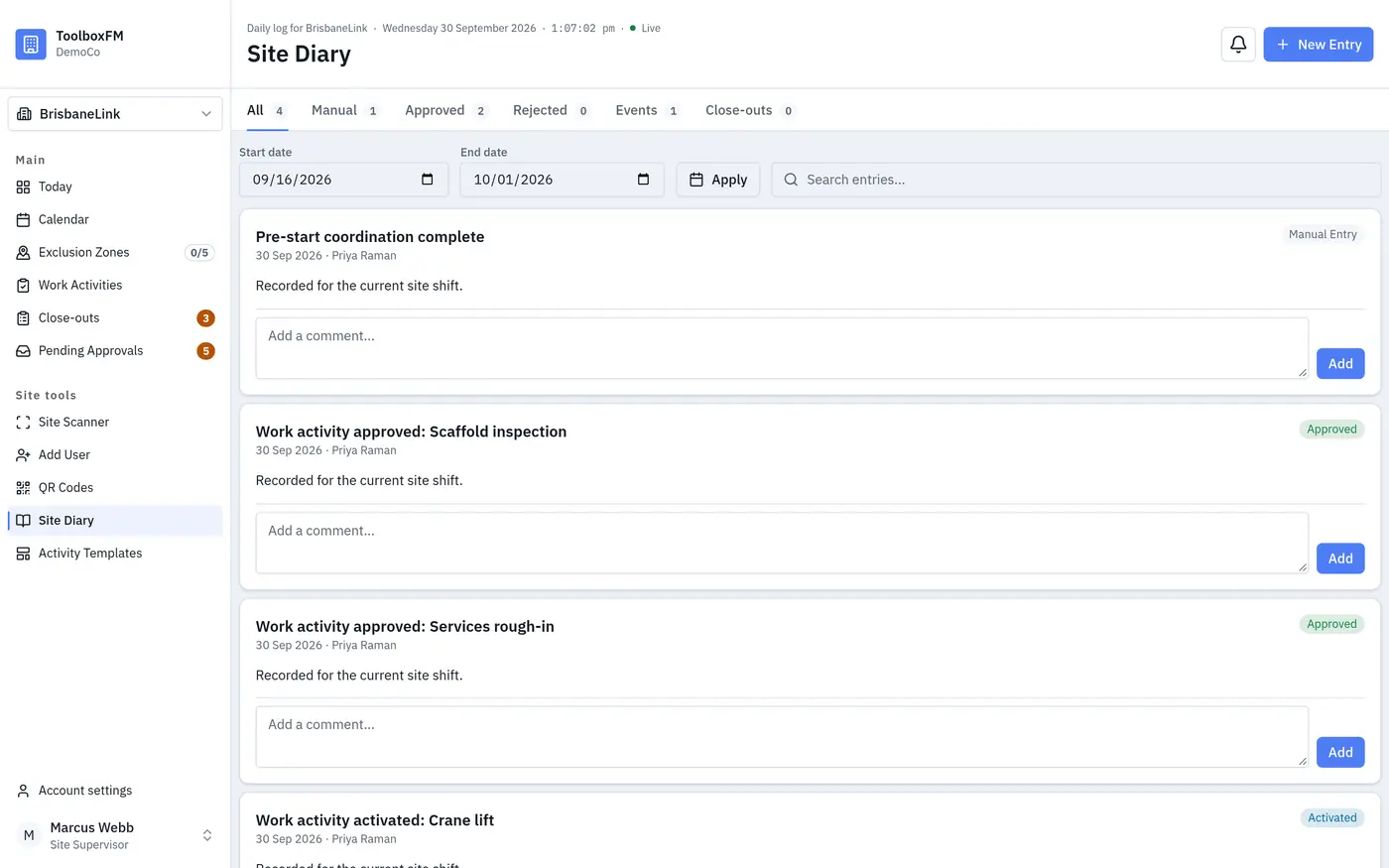
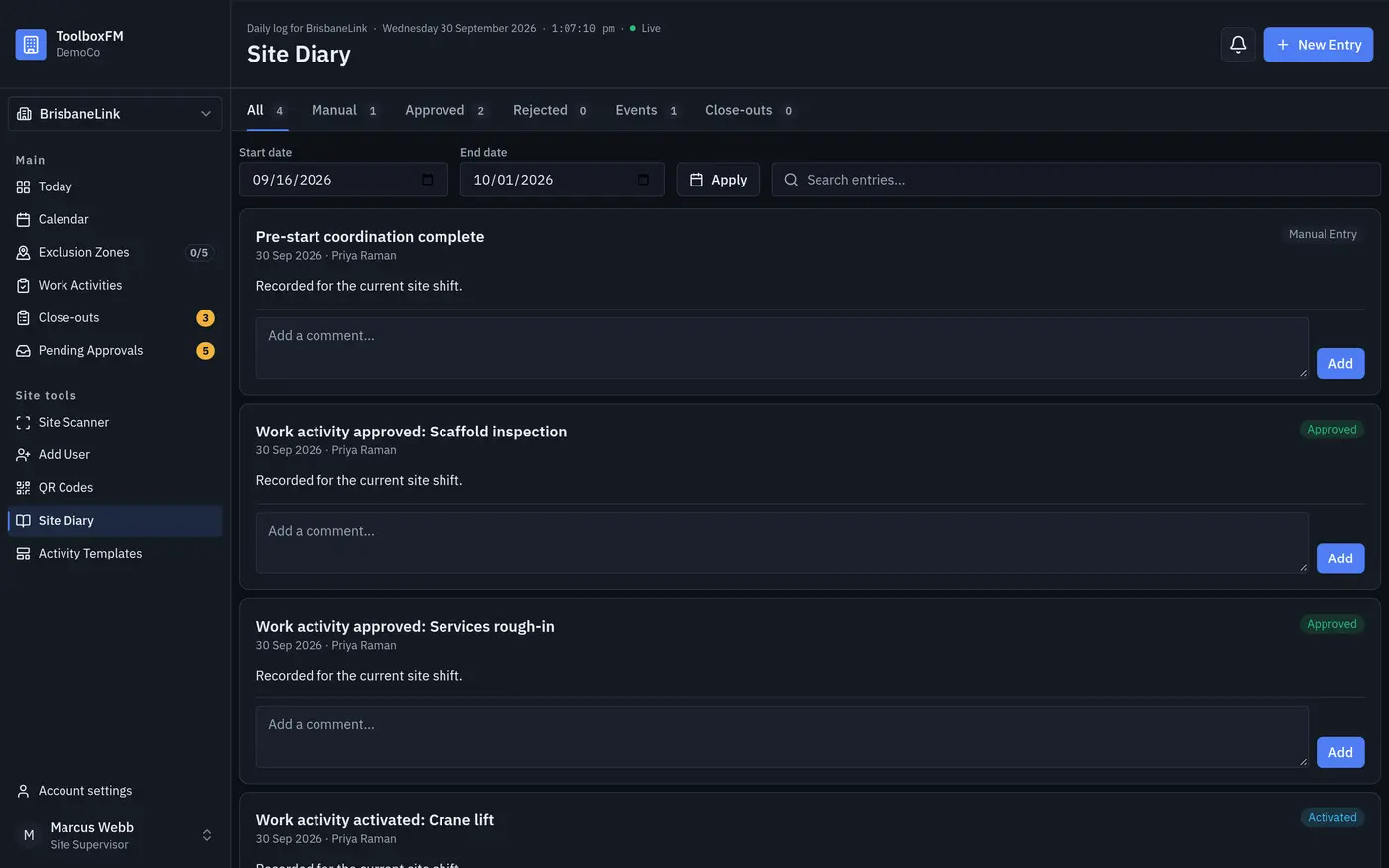
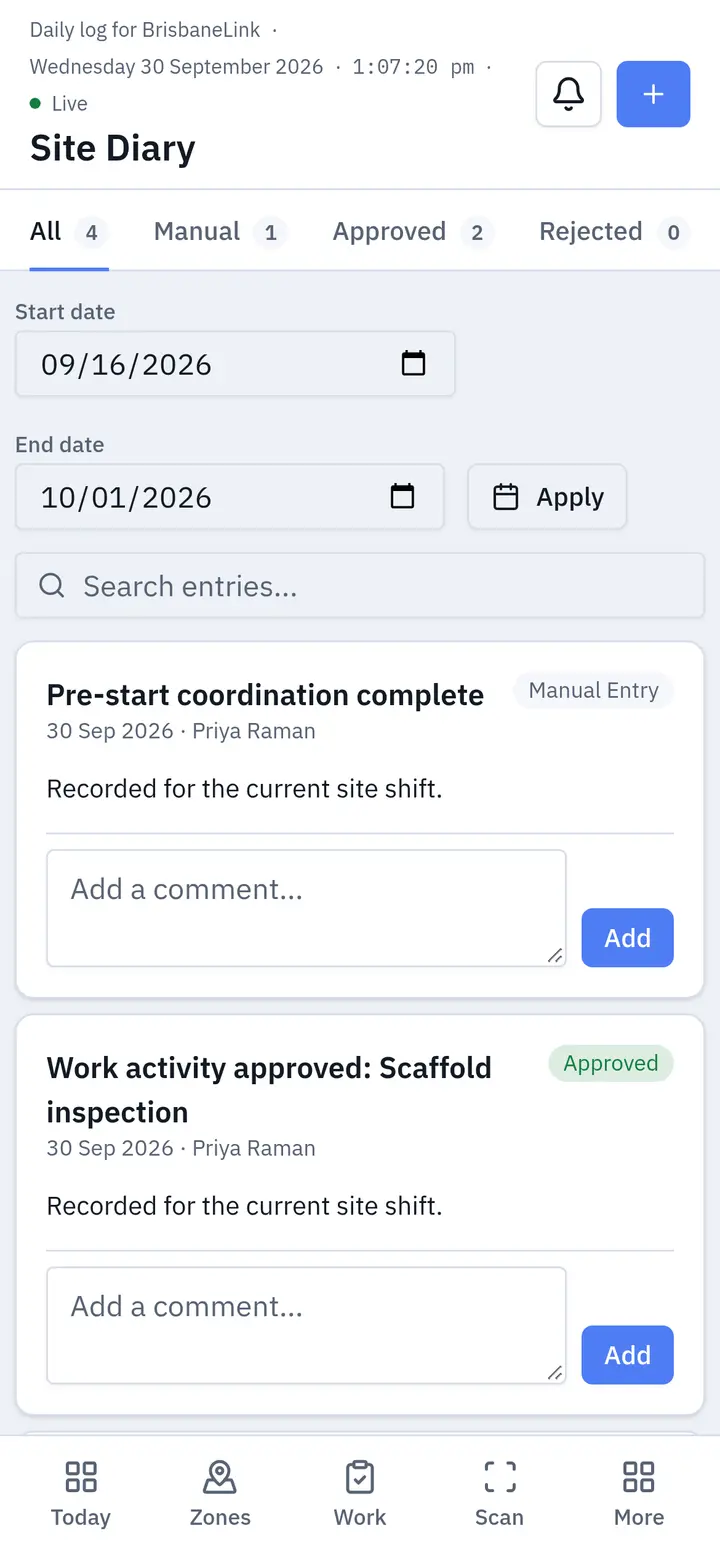
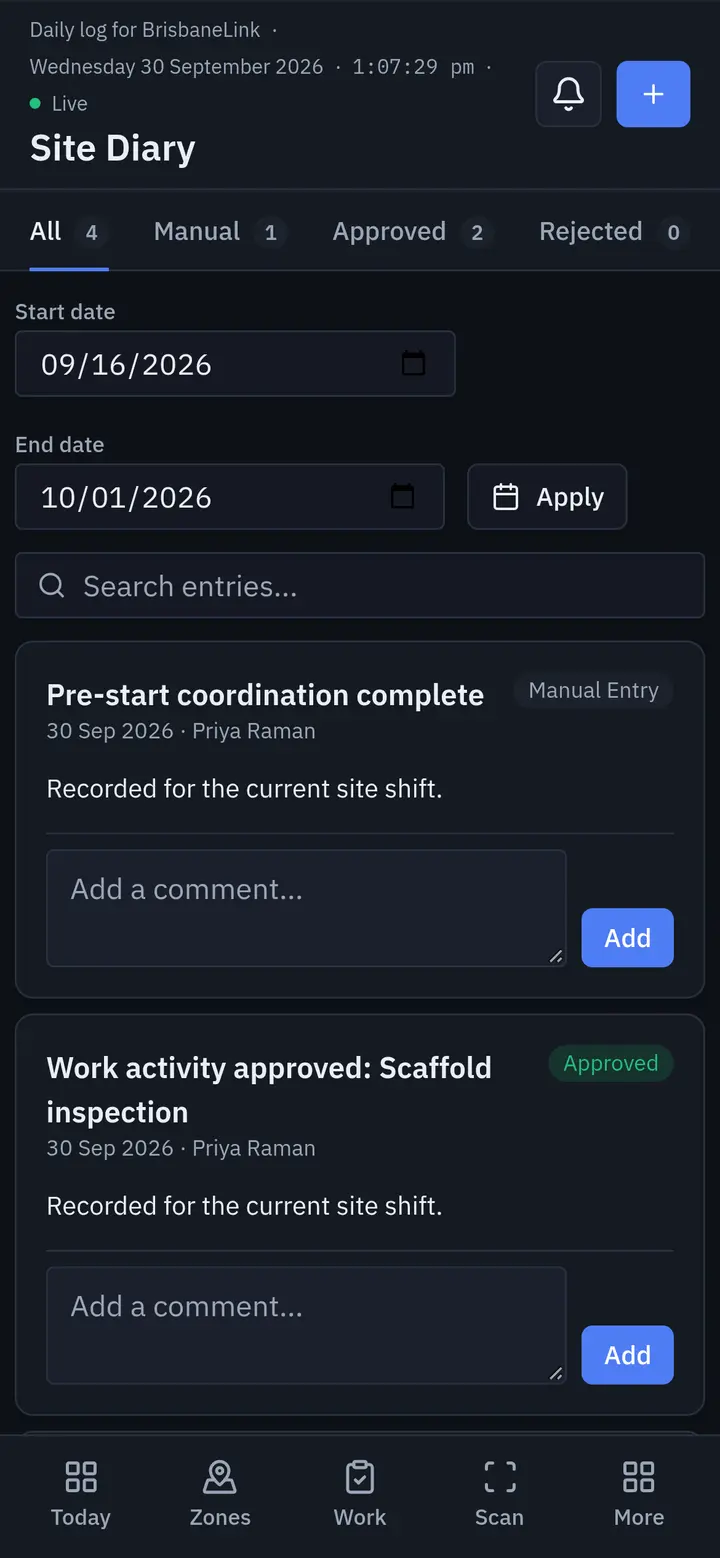
One activity. One zone. One clear record.
ToolboxFM connects the entire process — establish, communicate, book, approve, work, capture, close out.
Information can prevent incidents.
ToolboxFM — Broadcast What's Important.